Find the next
thing to love.
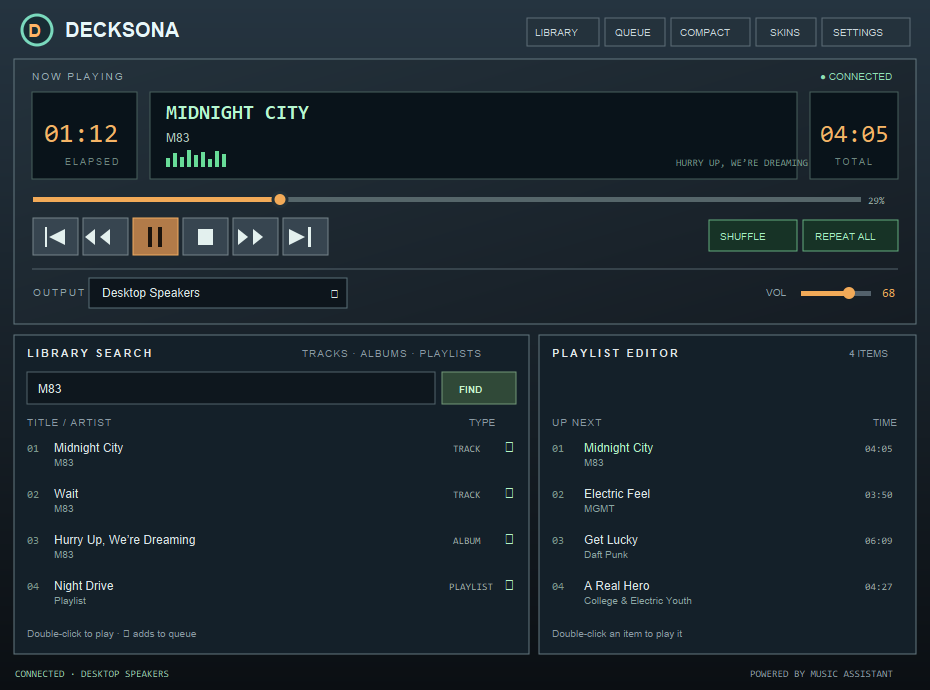
Search tracks, albums, playlists and artists across your Music Assistant library. Follow an artist into their albums, then explore album tracks in place.
A desktop player for Music Assistant
Meet Decksona: a retro-inspired player for your desktop and your phone. Browse the Music Assistant library you already love, then control playback where it happens.

Music Assistant brings your listening together. Decksona adds a dedicated player for desktop and phone: browse your collection, shape what plays next, and keep the controls close.
THE PLAYER, YOUR WAY
A full-featured music player with the thoughtful details that make sitting down at your computer feel a bit more like sitting down at the stereo.
Search tracks, albums, playlists and artists across your Music Assistant library. Follow an artist into their albums, then explore album tracks in place.
Add music as you browse, then drag tracks into your preferred order. Double-click an upcoming track when you want to jump straight to it.
Skip, seek, shuffle, repeat, adjust the volume, and switch outputs. Pop into compact view or let the player become a slim, art-forward companion.

PICK YOUR FREQUENCY
Mix one of six color palettes with one of six surface treatments. Go phosphor-green and glassy. Or pick the copper CRT glow. Your player, your call.
✳ Your skin choice stays on your computer.
ALSO IN YOUR POCKET
The phone-sized web app brings Decksona’s player, library and queue to your iPhone or Android browser. Add it to your home screen and use your phone as a remote for Music Assistant.
Your phone controls the music. Playback comes from the Music Assistant output you choose; the phone itself isn’t an audio output.
web/ filesPlace the contents of the project’s web/ folder in Home Assistant’s www/decksona/.
On home Wi-Fi, visit http://HOME_ASSISTANT_IP:8123/local/decksona/.
Use Safari’s Share menu on iPhone, or Chrome’s menu on Android, then connect your Music Assistant server.
For home Wi-Fi: this setup uses local HTTP. Its access token is saved in the phone’s browser and travels over your local network without TLS. Don’t expose it to the internet or use it on public Wi-Fi.
UP AND PLAYING
Decksona uses your Music Assistant server and its connected players to control playback.
Decksona connects to Music Assistant over your network. It needs a direct server address, such as http://your-server:8095.
In Music Assistant, open Settings → Profile to create an access token for the connection.
Enter your server address and token in Decksona, select an available Music Assistant output, and search your library.
GOOD MUSIC DESERVES A GOOD HOME.
WINDOWS · macOS · MUSIC ASSISTANT